 |
Input Data (Samples)
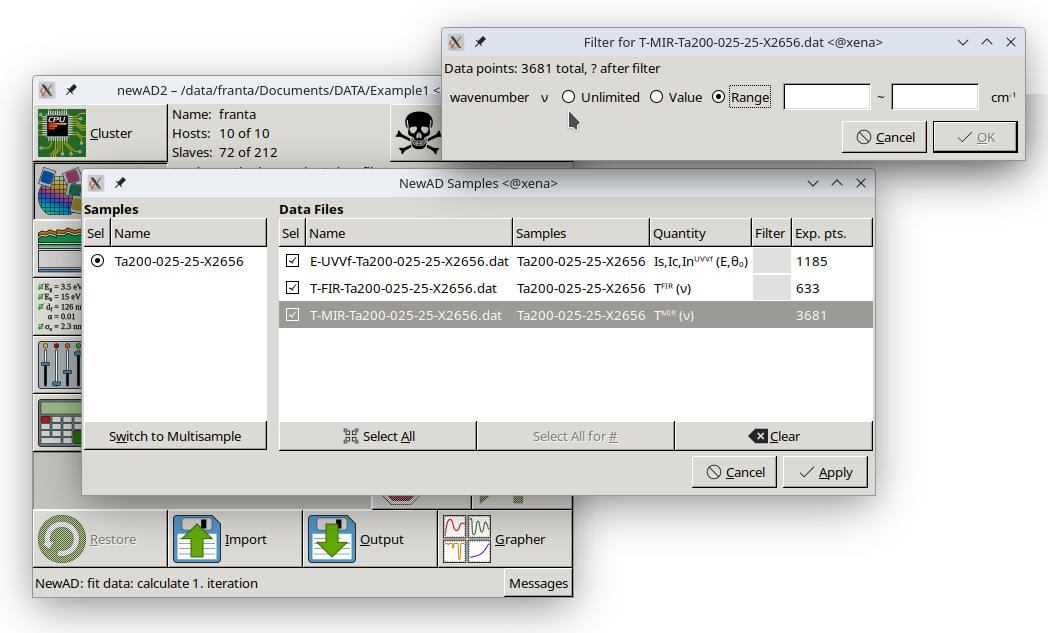
A dialog with two panels. On the left, the Samples panel lists the samples (number, selection, name) – in single-sample mode the selection acts as a switch for the active sample, in multisample mode as checkboxes for the active samples, with Up/Down buttons to reorder them. Below this panel is the Switch to Multisample/Switch to Single Sample button, which toggles between the two modes (unavailable in multisample mode while at least two samples are active – switching back to a single sample is not possible until the others are unchecked). On the right, the Data Files panel lists the data files found in the working directory (rescanned every time the window is opened), with their assigned samples and the measured quantity; checking a file selects it for loading. The Filter column is a gray button for each file – clicking it opens a dialog with one row per variable of that data series (name, unit, and an Unlimited/Value/Range switch with the corresponding input field, or a pair of fields separated by "~"), together with a live indicator of how many of the file's points currently satisfy the chosen filter; confirming with OK (enabled only once every filled-in field holds a valid number) saves the filter and the button in the main table then shows the filtered variable's name, while Cancel closes the dialog without changes. With no filter set, the button stays blank. The last column, Exp. pts., shows the total number of experimental points in the file, and, if a filter is set, how many of them satisfy it (e.g. "1234/5682"). Below this panel are three buttons: Select All (checks every file found), Select All for #N (checks only the files assigned to the sample number N currently selected in the left panel; unavailable when no numbered sample is selected) and Clear (unchecks every file). Selections are confirmed with the Apply button, or discarded with Cancel.