 |
| newAD2gui – Model
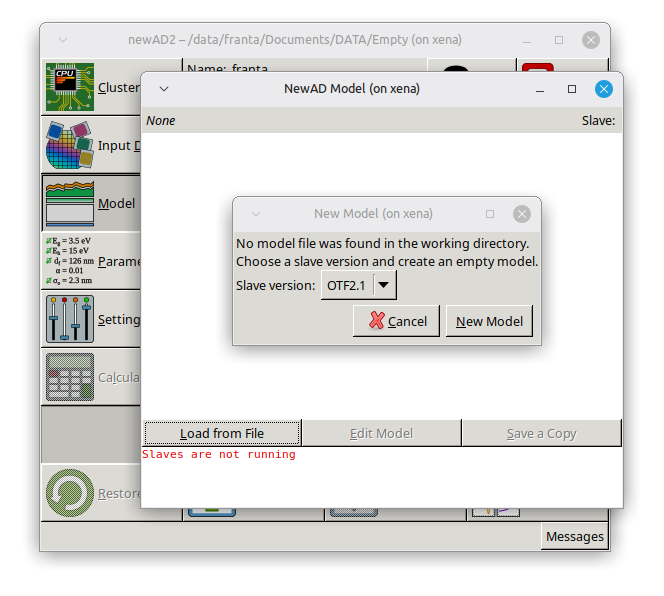
If the working directory has no model file at all, the Load from File button opens the New Model dialog instead of its usual table, with a version picker (OTF2.1/OTF2.2) and a New Model button. Choosing a version and pressing this button creates a new model file named model in the working directory, with an empty structure (the structural parameters, media, boundary systems, sample measurements, functions and modeled functions sections, all empty for now); the dialog then closes and the model is loaded right away. If a file with that name already exists (it cannot be a valid model file – otherwise this dialog would not have opened at all), the standard overwrite confirmation appears before it gets replaced.
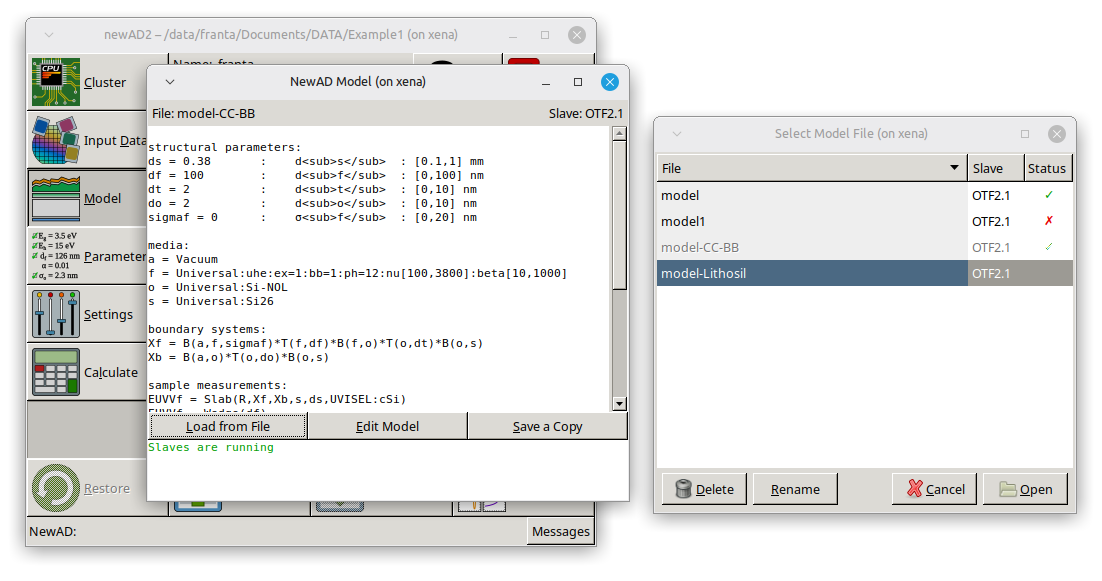
The window shows the file the model was loaded from (or None if no model was loaded from a file), the name of the computing process (slave), and below it a preview of the model definition. If the model was recognized automatically – see below – the corresponding file is shown here too, even though it was not loaded directly via the Load from File button.
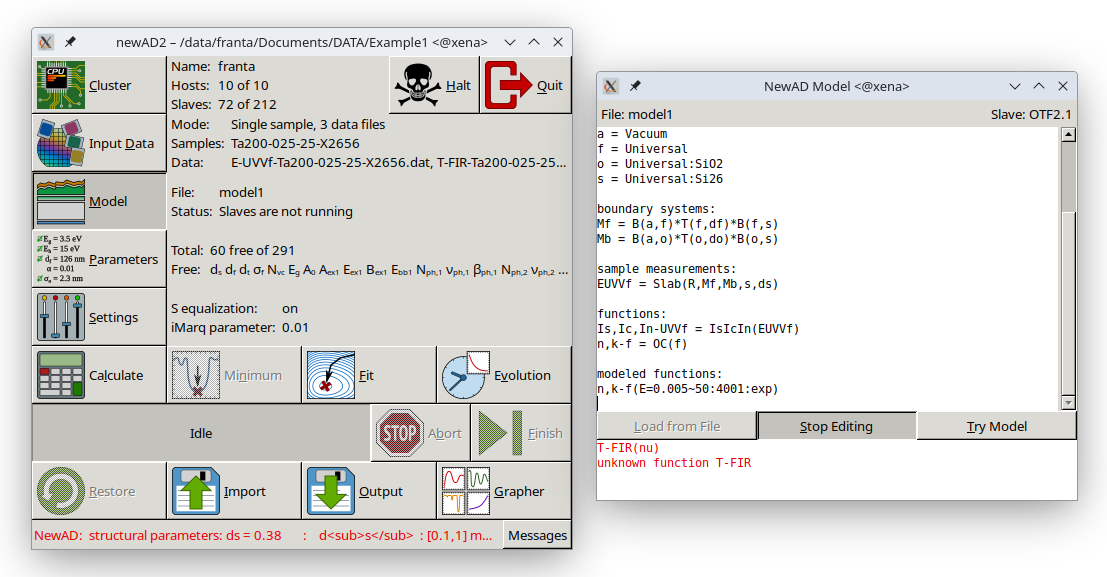
At the bottom of the window there are always three buttons, in the same order. On the left is Load from File – it opens a dialog with a table of previously saved model files from the working directory (name, slave, status) and loads the chosen one; unavailable while editing (see below). The row corresponding to the currently loaded model is grayed out in this table and cannot be selected, so this button cannot be used to re-select the currently running model, nor (see below) to delete or rename it. At the bottom left of this dialog are the Delete and Rename buttons for managing files directly from this dialog – there is no need to launch an external file manager for routine cleanup (deleting old model files or renaming them). Delete removes the selected file, after a confirmation prompt; Rename lets the selected file's name be edited directly in the table (confirmed with Enter, cancelled with Esc), and asks before overwriting if a file with that name already exists. The table refreshes immediately after a delete or rename, and the dialog itself stays open. Both of these buttons, like the Open button, are only active when a row is selected in the table. If no row is selected, but the currently loaded model is actually running (has a valid definition), the Open button instead turns into Reload and stays active – it loads that same model again. For an ordinary user, Reload behaves just like manually loading the model again; this button is mainly intended for model developers – after recompiling a slave (the computing process) during development, Reload reloads the model and forces the program to spawn a fresh slave process from the newly compiled binary, without needing to change anything in the model file itself. Reload also restarts the cache of calculated values, so the freshly spawned slave never picks up values that may have been calculated by the old version. If the currently loaded model is not running (broken, or no file loaded at all), the button without a selected row stays inactive as a plain Open. In the middle is a single toggle button, Edit Model/Stop Editing – pressing it turns the model definition preview into an editable text area where the model can be edited directly; pressing it again (now labeled Stop Editing) writes the edit back to the same file and reloads the model. This button is only available when the model was loaded from a real file. On the right is a button whose default function is Save a Copy (saves the current model definition, whatever its origin – a file, an import, or a restore – to a new file, see below); while editing, however, this same button becomes Try Model, which lets the in-progress edit be validated at any time (checked with the backend without leaving edit mode or writing anything to the real file) – the result (“Model OK” or an error) is shown, in color, directly below the buttons. If such an attempt fails and editing is then ended (Stop Editing), the broken, in-progress version of the model stays displayed and the Save a Copy button stays available, so it can still be saved as a copy (see below) rather than being lost.
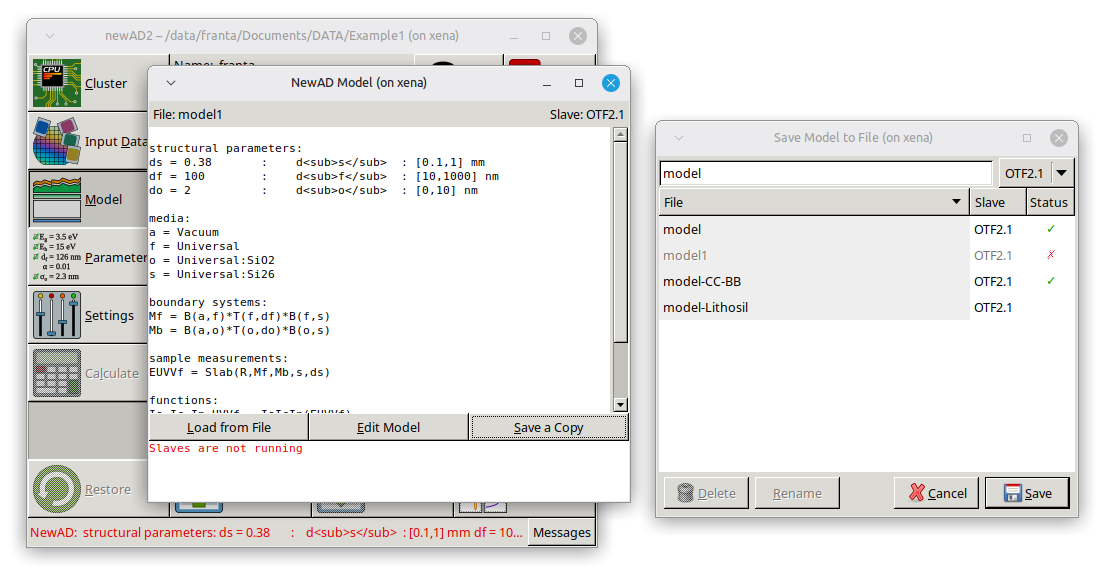
The dialog opened by the Save a Copy button has a text field for the file name at the top, pre-filled with the string model, and right next to it a toggle for choosing the version (OTF2.1/OTF2.2) the model should be saved under – it is automatically pre-selected to the version the model was actually last tried under (typically the version it was loaded from). Below that is the same table of previously saved model files as Load from File, with the same grayed-out, unselectable row for the currently running model and the same Delete and Rename buttons at the bottom left – here too they are for routine management of model files (deleting, renaming) directly from the dialog, without needing an external file manager, and are only active when a row is selected in the table. Clicking a row in the table (other than the grayed-out one) fills the field with that file's name. The Save button is only active while the file name field holds non-blank text; it saves the model to the given file, and if a file with that name already exists, a confirmation dialog appears, which also warns if the existing file does not look like a newAD2 model file based on its content. If the model is saved under the same version it was last tried under, the newly created file immediately inherits the same status (green check/red cross) as the model being saved; if saved under a different version (e.g. when migrating a model between versions), its status is unknown until tried again. This button can also be used to save an in-progress, broken model edit left over from a failed Stop Editing (see above) – it is saved exactly as it was last tried, without writing anything to the model's real file or resubmitting the edit for another try.
If a model loaded via Import (see below) or by restoring an interrupted calculation exactly matches, in its definition, a model file already saved earlier in the same working directory, the program recognizes this automatically and sets that file as the source – just as if it had been loaded with the Load from File button.